Copies, surfaces and edges
Choose whether a stroke paints every copy or one, one surface or the whole pet, and what happens at edges.
All copies or This one
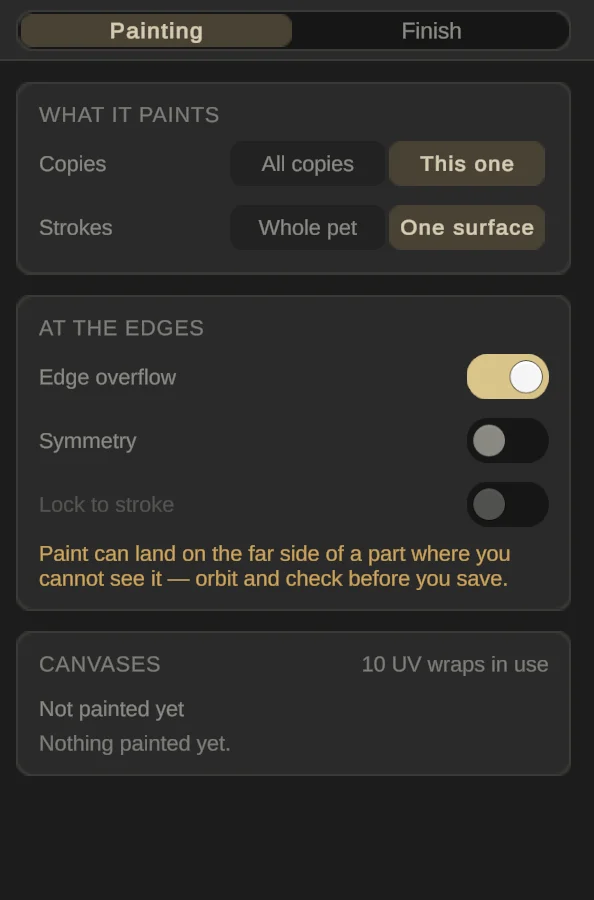
At the top of the Painting page, Copies decides what a stroke reaches.
All copies (the default) paints every copy of a part at once. Mirrored wings, ring-copied legs and duplicated heads share one painting, which also keeps your Roblox export small. This one paints only the copy you touch, and that copy gets a painting of its own.
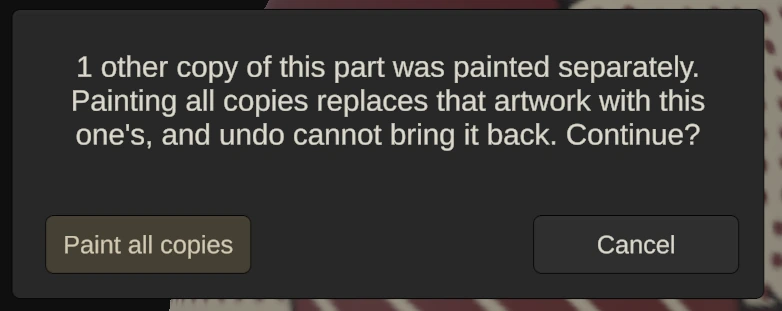
If a part’s copies were already painted separately, switching back to All copies asks first, because it replaces their artwork with this one’s and undo can’t bring it back.
One surface or Whole pet
One surface (the default) keeps each stroke on the surface where it started. Whole pet lets one stroke carry on across every part and surface it covers.
Edge overflow
Edge overflow is on by default: paint carries over rims and edges, but never through a thin part (Blur can). Turn it off and paint stops where a surface turns away from the brush.
The amber line under the switches means paint can land somewhere you can’t see, like the far side of a part. Orbit around the pet before you press Done.
Canvases
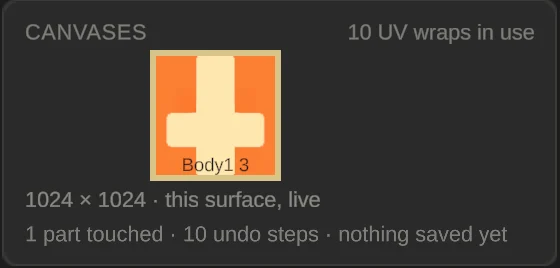
Canvases shows every texture you’ve painted this session, live as you draw. The ringed one is under your brush. UV wraps in use counts the pet’s painted textures; each costs memory and export size.