Tuning effects
The four dials, where particles start, how they move and look, their colour, and the playback buttons.
The four dials
Select an effect or one of its layers. The dials scale everything at once; 1.00 is the effect as its author made it.
| Dial | What it does | Range |
|---|---|---|
| Size | Scales every particle | 0.25 to 3 |
| Speed | How fast particles leave. Lifetimes stay the same, so faster means further | 0.25 to 3 |
| Amount | How many particles a second | 0.1 to 3 |
| Chaos | Randomness: spread, and the variety in speed and lifetime. 0 makes every particle the same | 0 to 2.5 |
Turn on Advanced to see the Roblox name of every setting, and a full list of the layer’s Roblox values at the bottom.
Where particles start
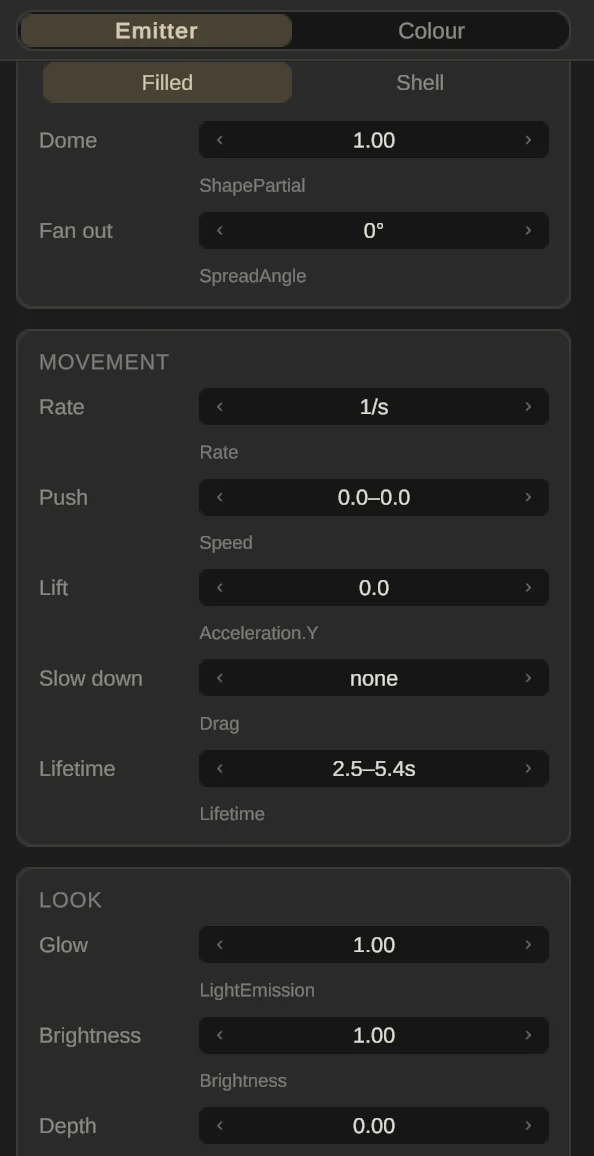
Rides on picks the part the particles are born in. The part’s box is the emission area, so a long tail makes a long, thin cloud. Main part is the pet’s root: your Main box, or the 2×2×2 one added in Roblox.
Then pick a shape:
- Box: anywhere inside the part’s box.
- Ball: inside a ball, leaving outward from its centre. Dome sets how much of the ball emits.
- Tube: inside a tube along the part, leaving outward from its middle. Taper turns it into a cone.
- Disc: on a flat disc, leaving upward. Hole opens the middle.
- Filled or Shell: anywhere inside the shape, or only on its surface.
- Fan out: how wide the spray of directions is, from 0° to 360°.
Movement
- Rate: particles per second. 0 mutes the layer.
- Push: how fast a particle leaves, in studs a second. Two numbers give a range.
- Lift: a steady pull up (positive) or down (negative).
- Slow down: how long a particle takes to lose half its speed.
- Lifetime: how long each particle lives, in seconds. Two numbers give a range.
Look and image
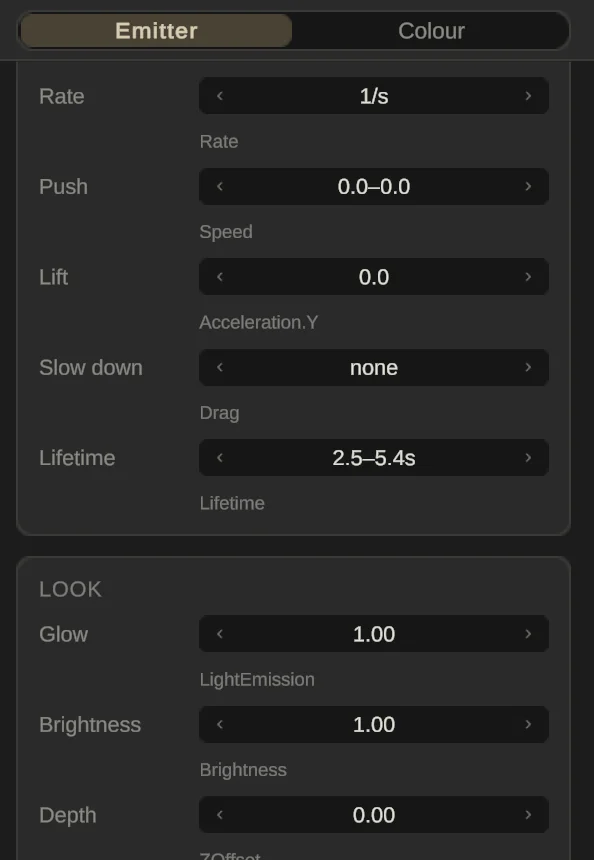
- Glow: 0 is a plain picture, 1 glows fully.
- Brightness: how strongly the colour shines. Above 1 pushes the brightest parts toward white.
- Depth: what draws in front of what, without changing size.
- Png: the picture each particle is drawn with. Swap it to keep the motion and change the look: a snowflake where there was a star.
Colour
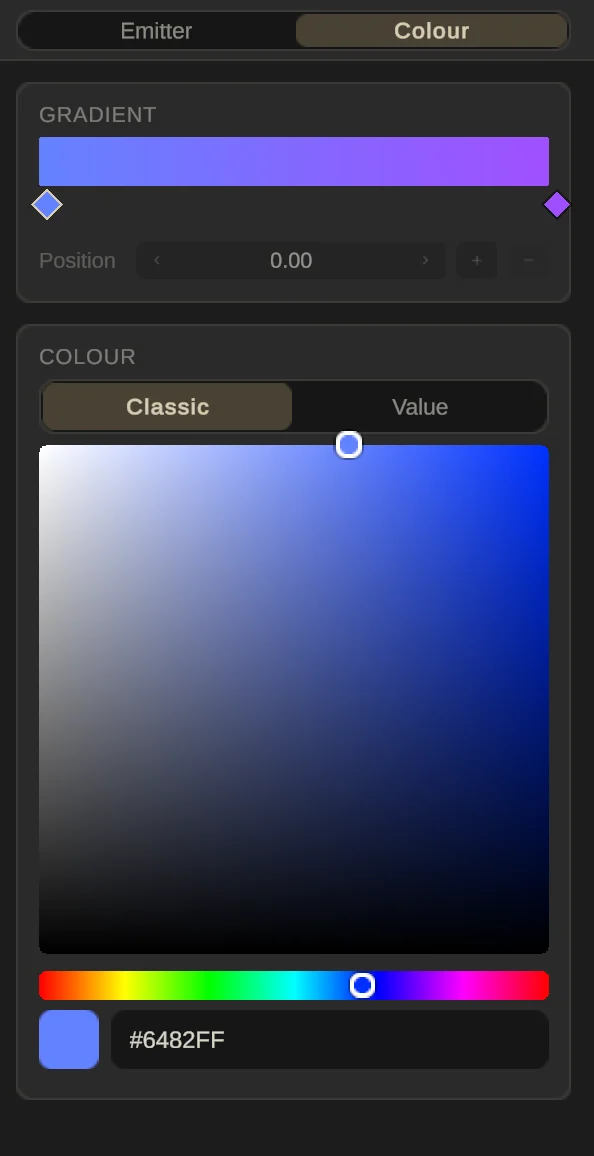
Select a layer and open the Colour page. The gradient is the particle’s colour over its life, from birth on the left to fade-out on the right. Click the bar to add a point, drag a point to move it, and pick its colour below. + adds a point between two others, − removes the selected one; the two end points always stay.
Playback buttons
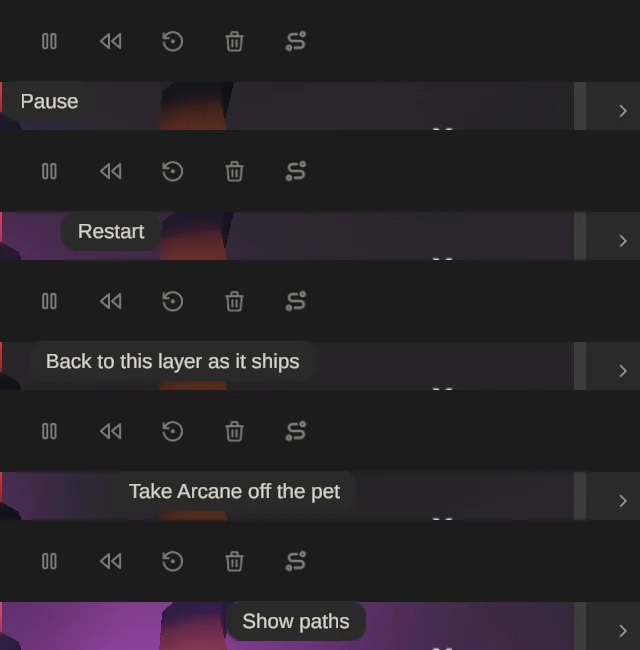
Five buttons replace the gizmo tools while VFX is open:
- Pause / Play freezes the particles on screen.
- Restart starts every effect again from zero.
- Back to … as it ships undoes all your tuning on the selected layer or effect.
- Take … off the pet removes the selected effect.
- Show paths draws trails behind a few particles in each layer, so you can see how they move.
In Roblox
Each visible layer becomes one real Roblox ParticleEmitter on its Rides-on part, with your dial values built into its settings. Hidden layers are left out.