Adding parts and Main
Find parts in the library, add them with a click, and learn what Spawn Main and the R6 reference are for.
Pick a collection
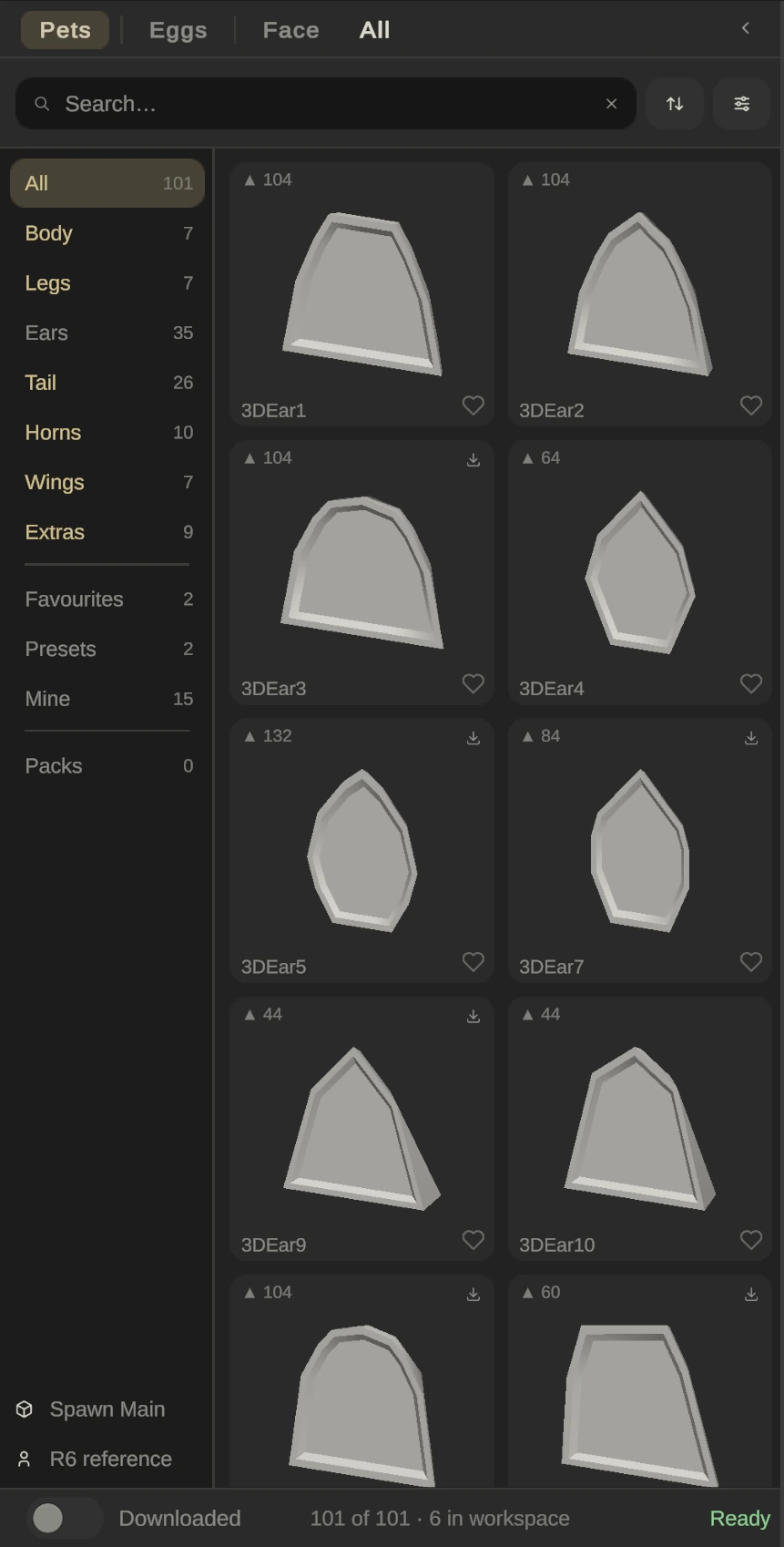
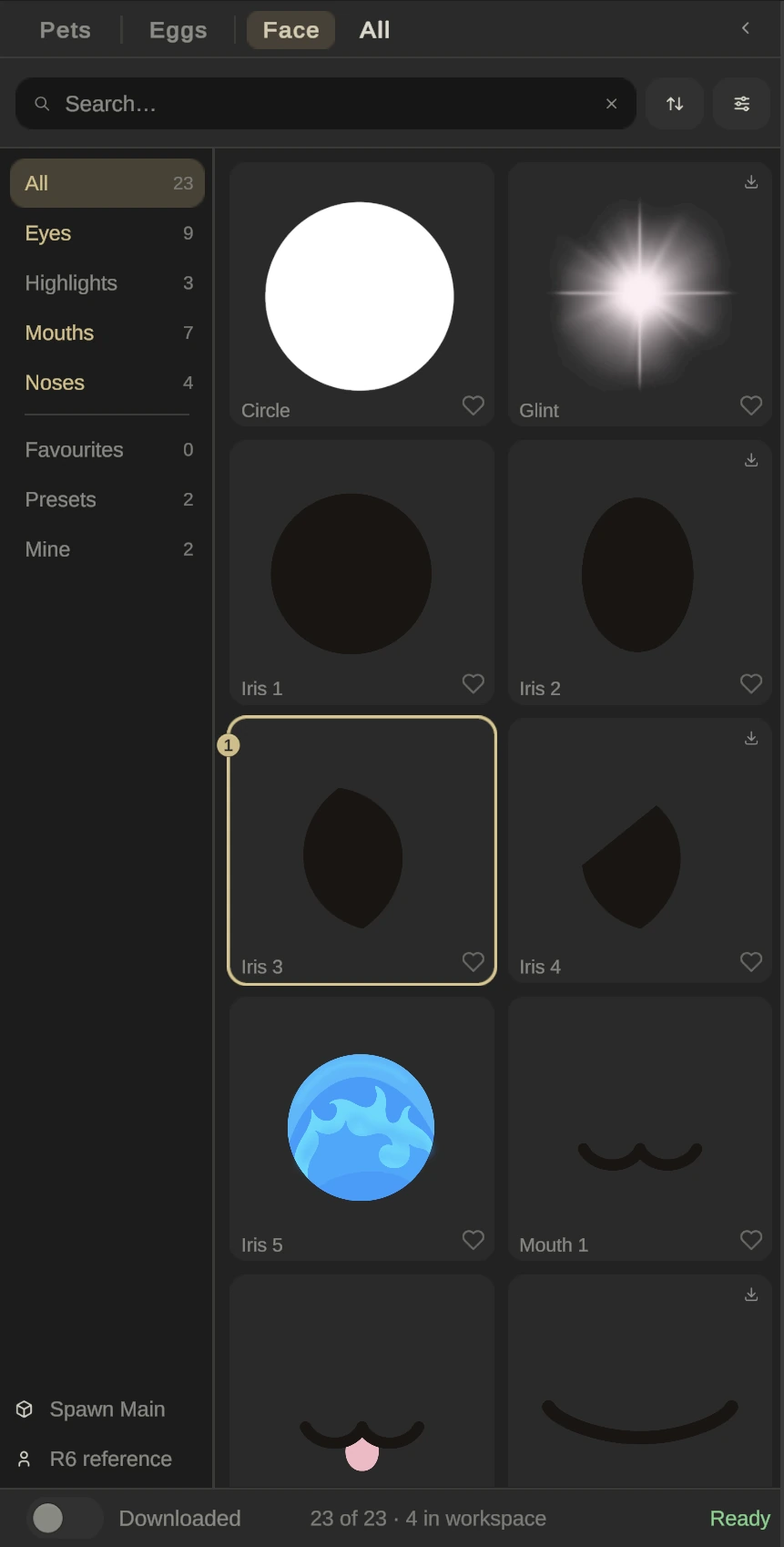
The library has three collections at the top: Pets (bodies, legs, ears, tails, horns, wings and extras), Eggs (egg bases) and Face (eyes, highlights, mouths and noses). The fourth label shows the category you are in.
The rail on the left sorts the collection into categories, with the number of parts in each. All shows everything in the collection. Below the categories are Favourites, Presets (sets of parts you saved), Mine (your own imported parts) and Packs. A category that already holds a part from your pet is tinted gold.
Read the cards
- ▲ 104 is how many triangles the part has. Lower is cheaper in Roblox.
- A download arrow means the part isn’t on your computer yet. It downloads when you add it.
- A number badge and ring mean the part is already in your pet, and how many copies.
- The heart adds a part to Favourites.
- A cyan name means the part is new in the library this week.
Search, sort and filter
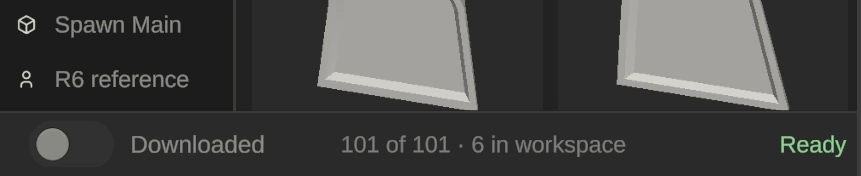
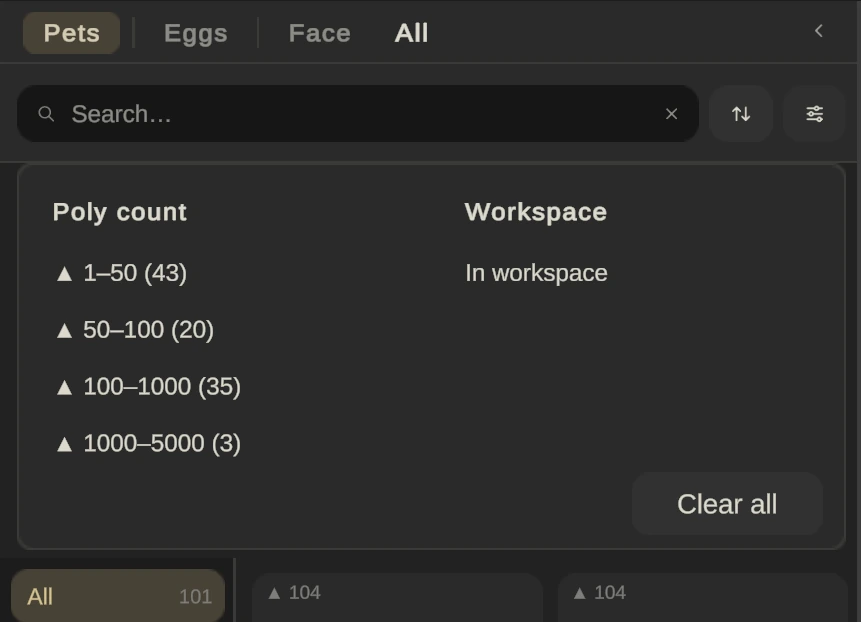
Type in Search… to match names. The sort button switches between Catalog order, Name A–Z and Newest. The filter button opens a drawer: Poly count narrows the list by triangle range, and Workspace narrows it to parts already in your pet; Clear all resets it. Turn on Downloaded at the bottom to see only parts already on your computer. The line next to it counts what you see, for example 101 of 101 · 6 in workspace.
Click to add
Click a card and the part appears in your pet, selected and ready to move. Dragging a card does nothing, so just click. Start with a Body, then add the rest.
What Spawn Main is for
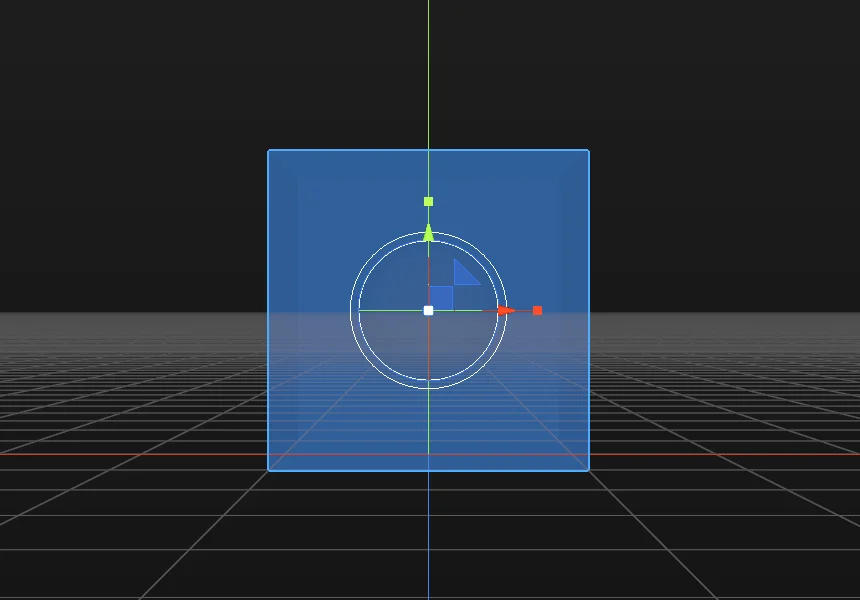
Every Roblox pet has a root part called Main. You don’t have to make one: when your pet is set up in Roblox Studio, an invisible 2×2×2 Main is added for you.
Click Spawn Main at the bottom of the library only when you want control over it. It places a see-through box that becomes your pet’s Main. You can move and scale it, but it never rotates, and its size sets how widely effects that ride on Main spread out. A pet has one Main; clicking again selects it.
R6 reference, next to it, adds a Roblox character so you can compare sizes. It’s never exported or saved.